
Skip To A Section
Technical SEO For Adobe Commerce: Fixes and Optimisations
Adobe Commerce is a powerful eCommerce platform, but with its complexity it can pose significant challenges for SEO if not managed correctly. Adobe Commerce sites often have deep, layered category structures and dynamic URLs and without efficient technical set up can pose a number of technical errors such as:
Search engines may struggle to crawl and index pages, duplicate content errors and wasted crawl budget, slow website loading times and poor core web vitals leading to missed opportunities and frustrated website users. Knowing how to build your Adobe Commerce store with good technical SEO foundations is crucial for long term website health and growth.
In this article we will run through some of the most important technical SEO aspects so if you are building an Adobe Commerce store, or trying to fix one that is already built you will be able to do so without wasted time and effort.
If there are any terms through this article that don’t make sense to you, visit our glossary for an explanation of the meaning.
URL Structure Optimisation
Importance of Clean URLs
Clean, user-friendly URLs are essential for both SEO and user experience. They help search engines understand your site structure and are also easier for back end management, marketing and linking. Your URL structure is also important for your on-page SEO as explained in the article: on-page SEO for Adobe Commerce.
When creating your URLs avoid long, parameter heavy URLs as they can confuse crawlers, cause indexing issues and also create duplicate content risks. It is recommended that you keep your URL path length between 50-60 characters, whilst there is no strict rule to URL length it is good to stick to this when possible.
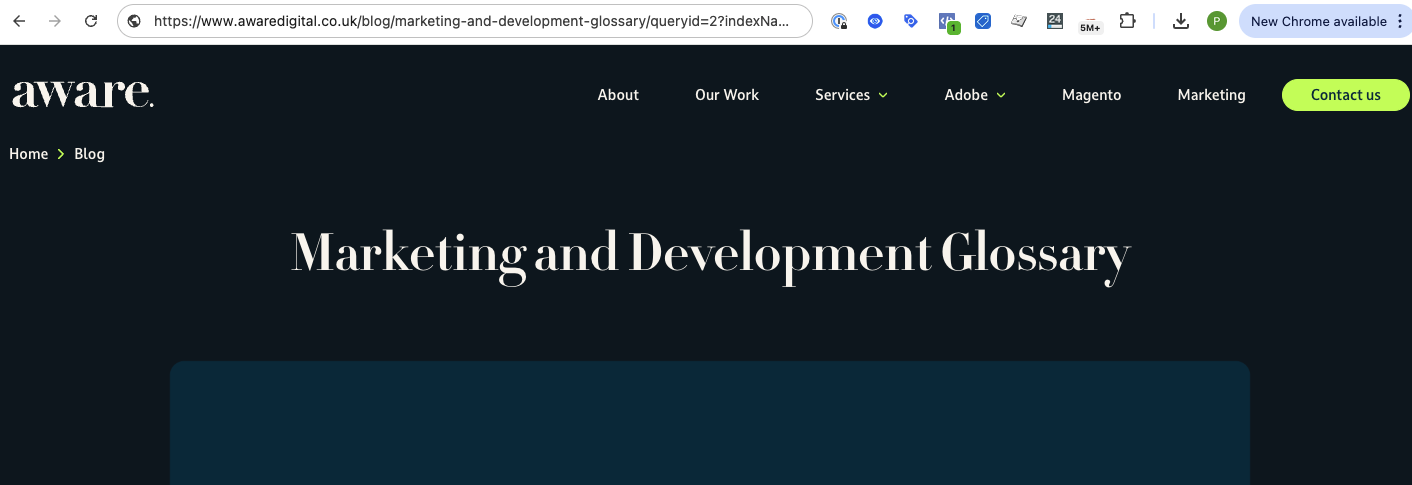
The screenshot above shows an example of a parameter heavy, long URL which you should avoid.
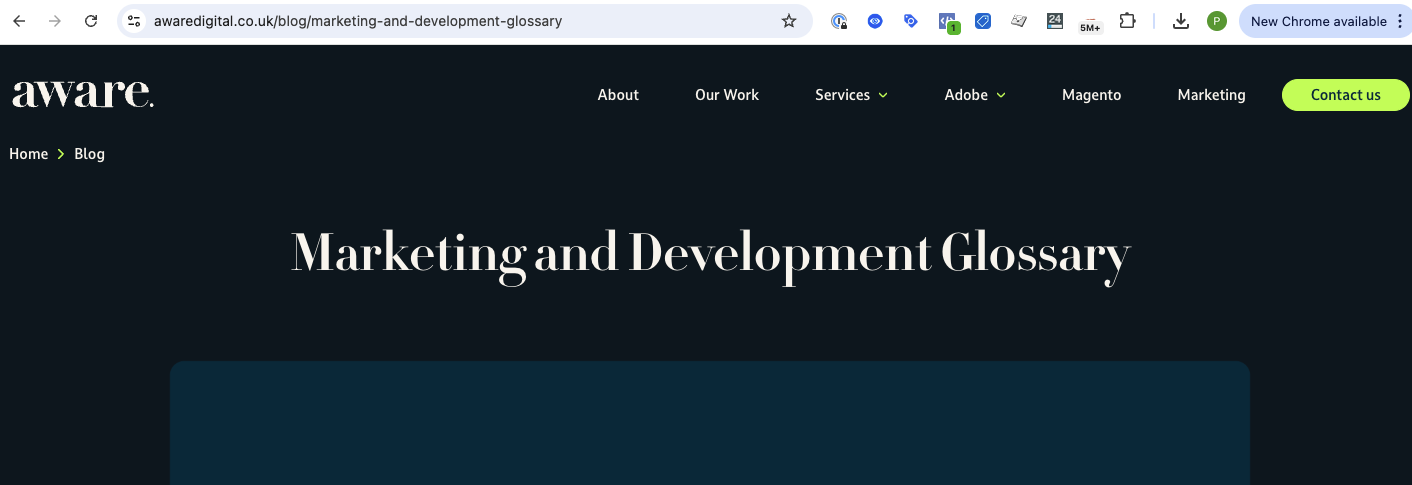
This screenshot shows how the URL should be for best practice.
When creating URLs you should also remove the .html suffix if possible. Adobe Commerce often adds .html to product and category pages but it is not essential. Removing this suffix can help to create cleaner, more modern URLs. Just remember to ensure 301 redirects are in place when changing existing URLs.
Best Practices For Adobe Commerce URLs
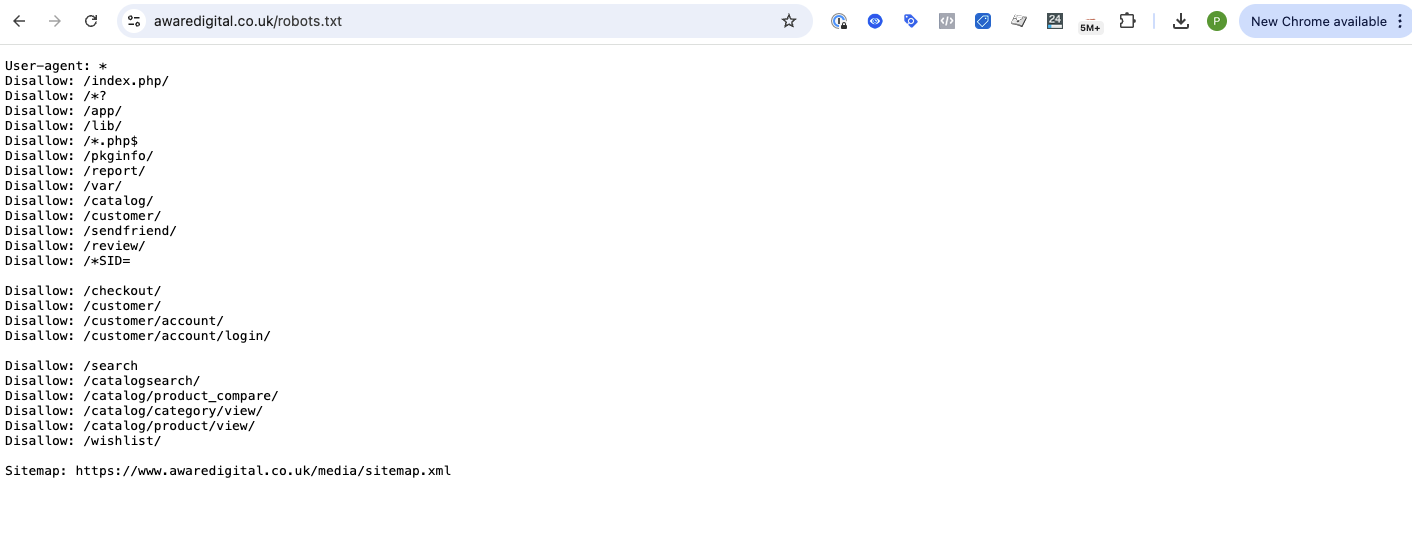
Working with layered navigation can be an issue as you will have pages with the same content being served on multiple URLs. To avoid duplicate content issues in Google Search Console you can use robots.txt file to disallow certain parameters, you can no-index certain parameters or you can use canonical tags to prevent variations from being indexed.
Adobe Commerce also allows products to live under multiple categories, which can create multiple URLs for the same product, using canonical tags to point to the preferred version will prevent duplicate content.
If you are working on a website that has already been built and are facing some of these issues then you can use a tool like Screaming Frog to run a crawl and find URLs that are using bad practice, or you can identify these issues in Google Search Console if it is set up and configured for the website.
XML Sitemap Configuration
An XML sitemap is a protocol to inform search engines about URLs on a website that are available for crawling. A properly configured XML sitemap ensures search engines can efficiently discover and index your most important content.
Default Adobe Commerce Sitemap Setup
To enable and configure your Adobe Commerce XML sitemap you can follow the steps below:
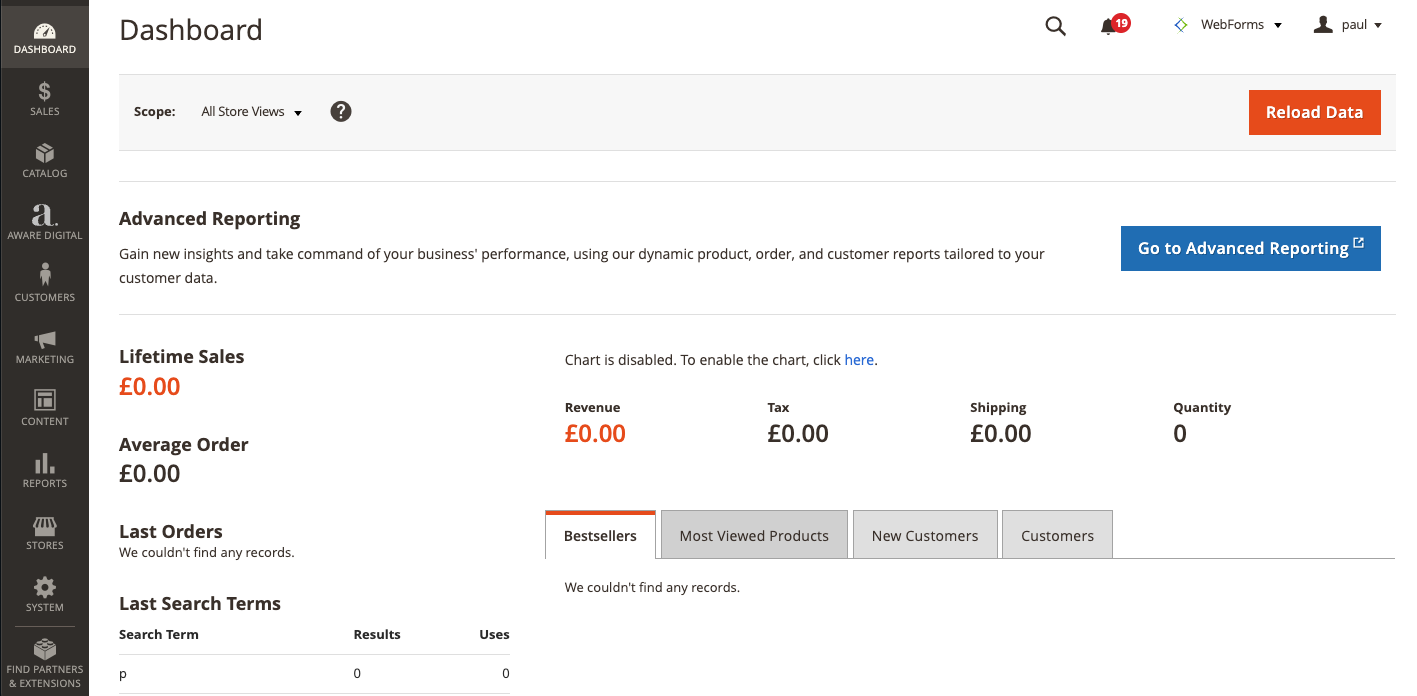
Firstly open your Adobe Commerce admin panel, on the left hand side navigate to ‘stores’.
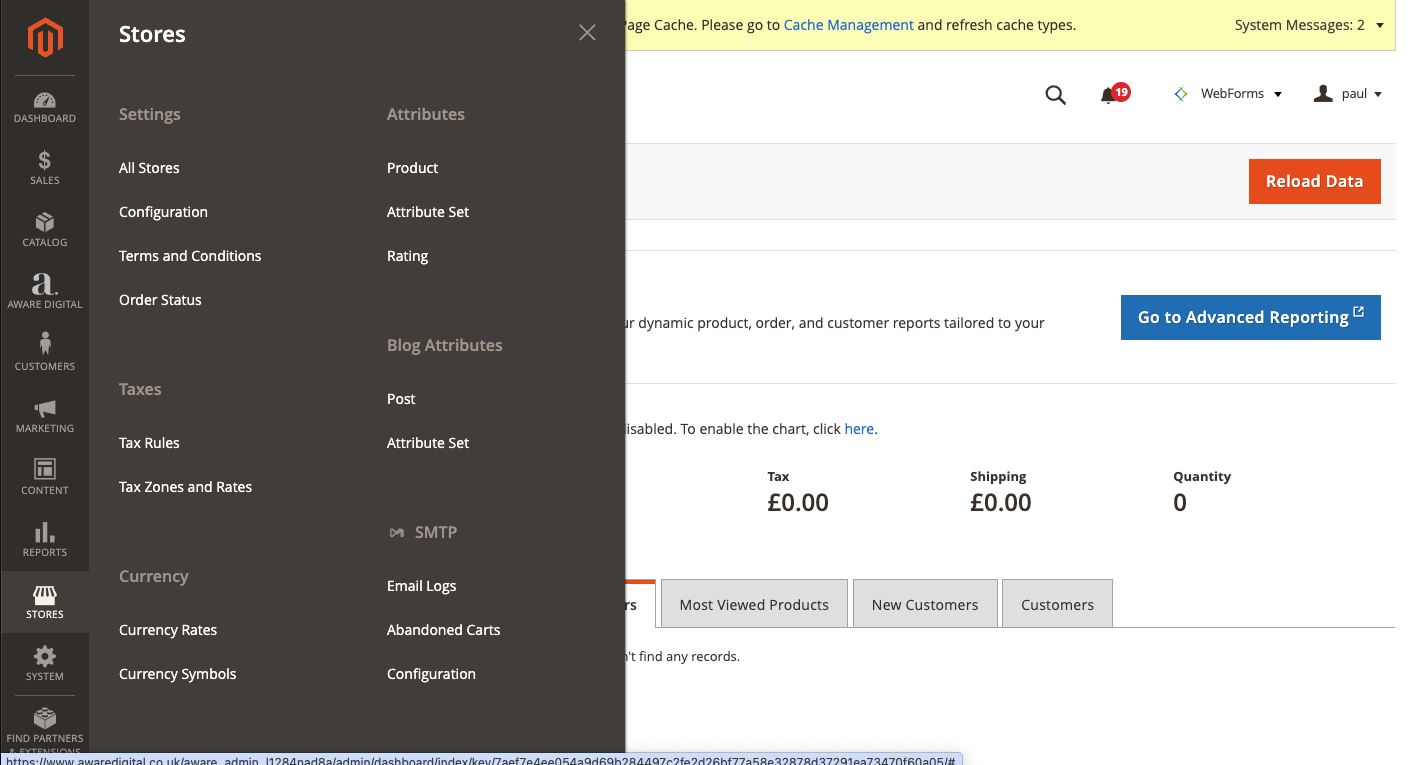
You then need to click on configuration.
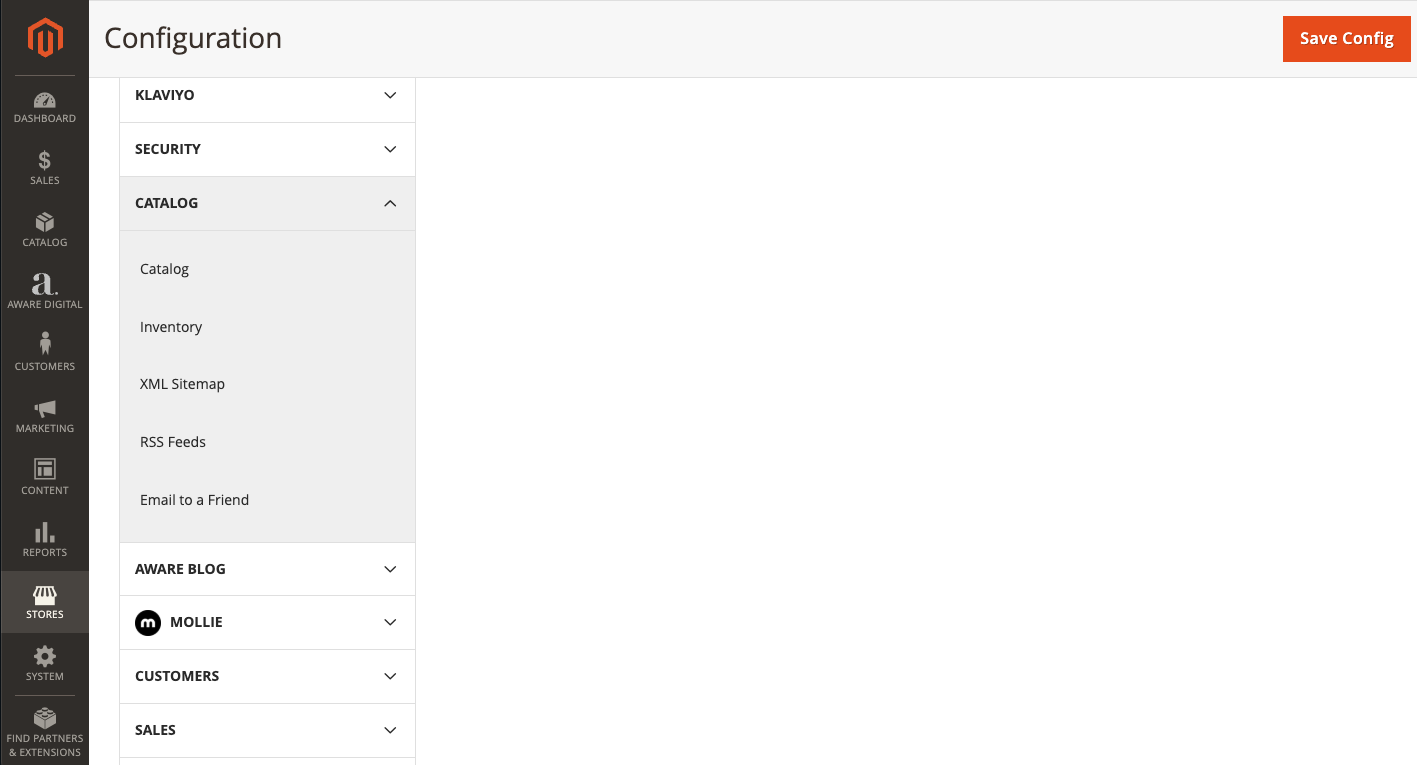
Then scroll down to the catalog section and click on XML sitemap.
Here you can configure update frequency, priority and which content types to include such as categories, products and CMS pages as well as some other settings.
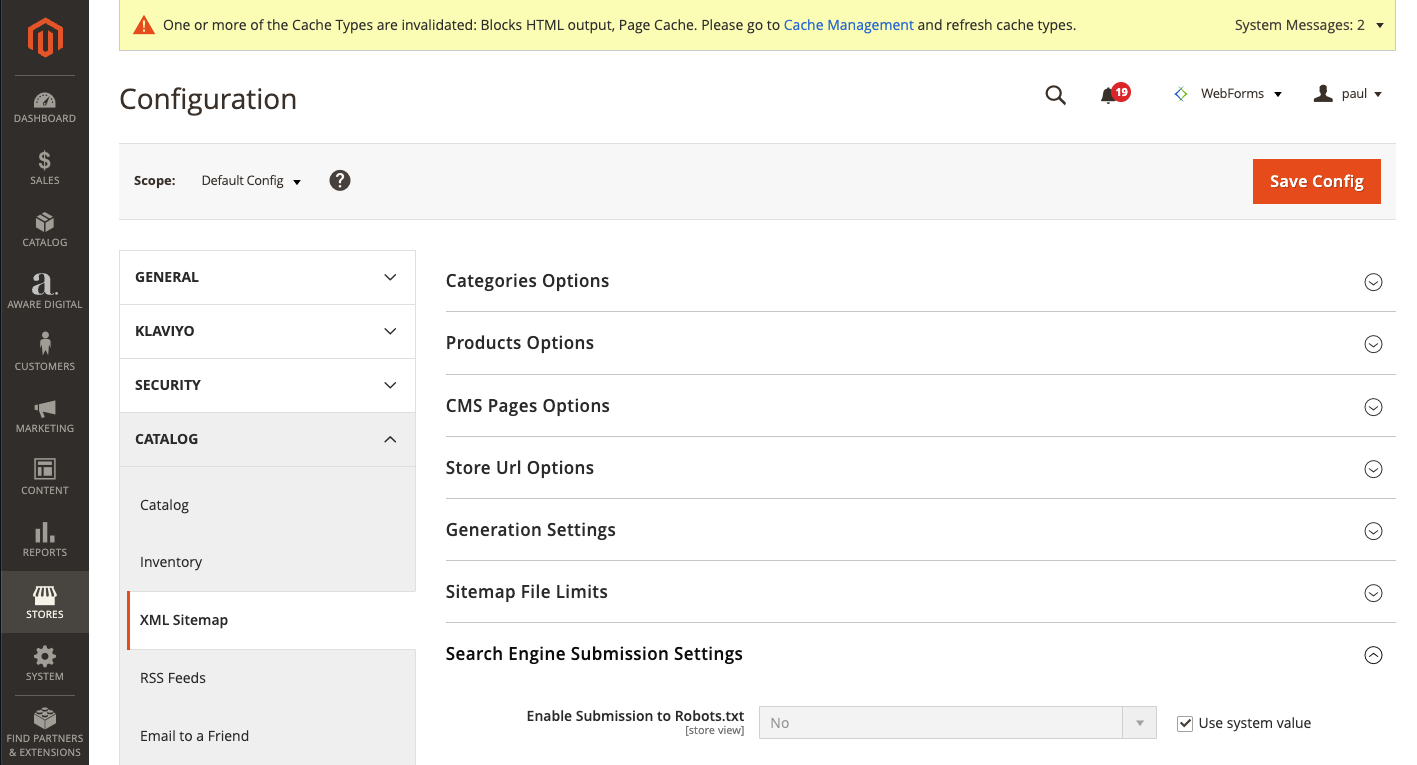
If your sitemap isn't updating automatically, one common cause is that the Magento cron job isn't active or properly configured. Adobe Commerce relies on cron to handle scheduled tasks such as sitemap regeneration. Make sure your cron is set up correctly on the server using the bin/magento cron:install command, and check that the cron runs regularly via your hosting control panel or server configuration.
Without an active cron, sitemaps and other time-based tasks won’t function as expected.
Submitting and Validating Sitemaps
Once you have generated your sitemap, you need to submit it to Google Search Console, Bing and any other search engines you would like to be discovered on. Please be aware that a sitemap is not the only way they will find your website, submitting to Google Search Console is enough, to do this follow the steps below:
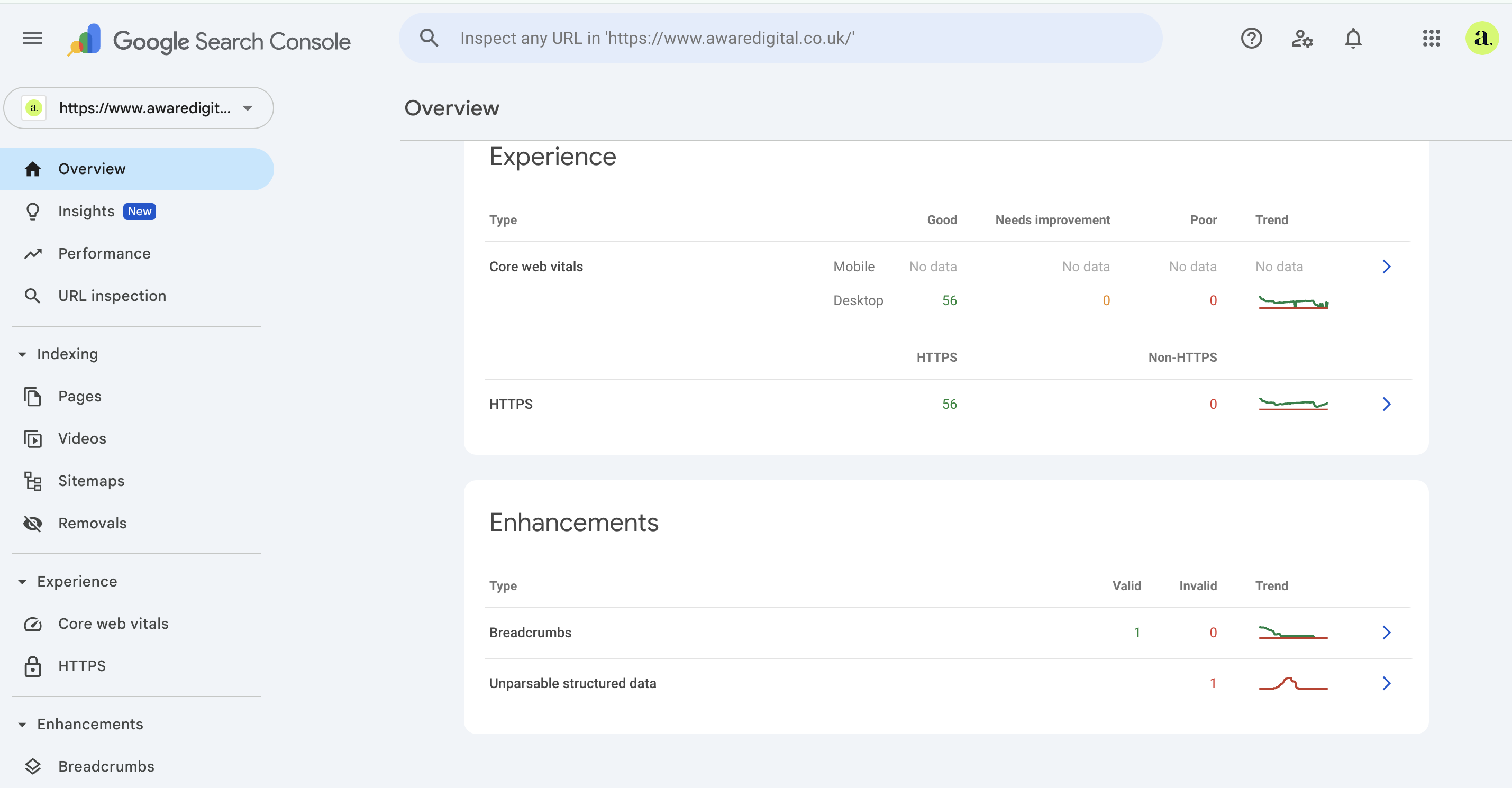
Navigate to Search Console, on the left hand side you can see an option for ‘Sitemaps’, click on this.
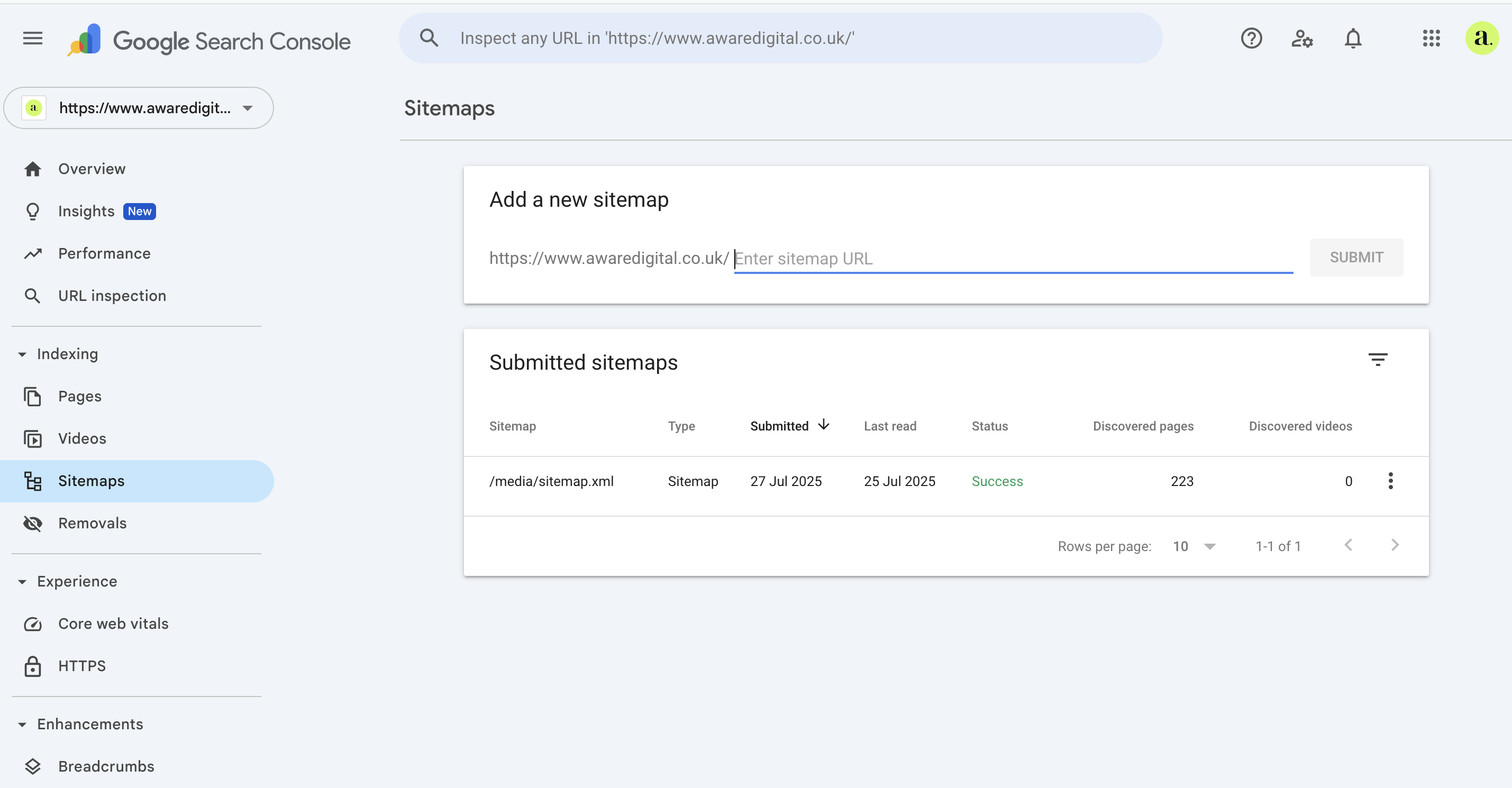
You can then add the URL of your sitemap and press the submit button, Google will then begin to crawl your sitemap. To find the sitemap URL, on your Magento dashboard, navigate to marketing > sitemap. The sitemap URL is usually websitedomain.com/sitemap.xml but you can check in your admin dashboard to be sure.
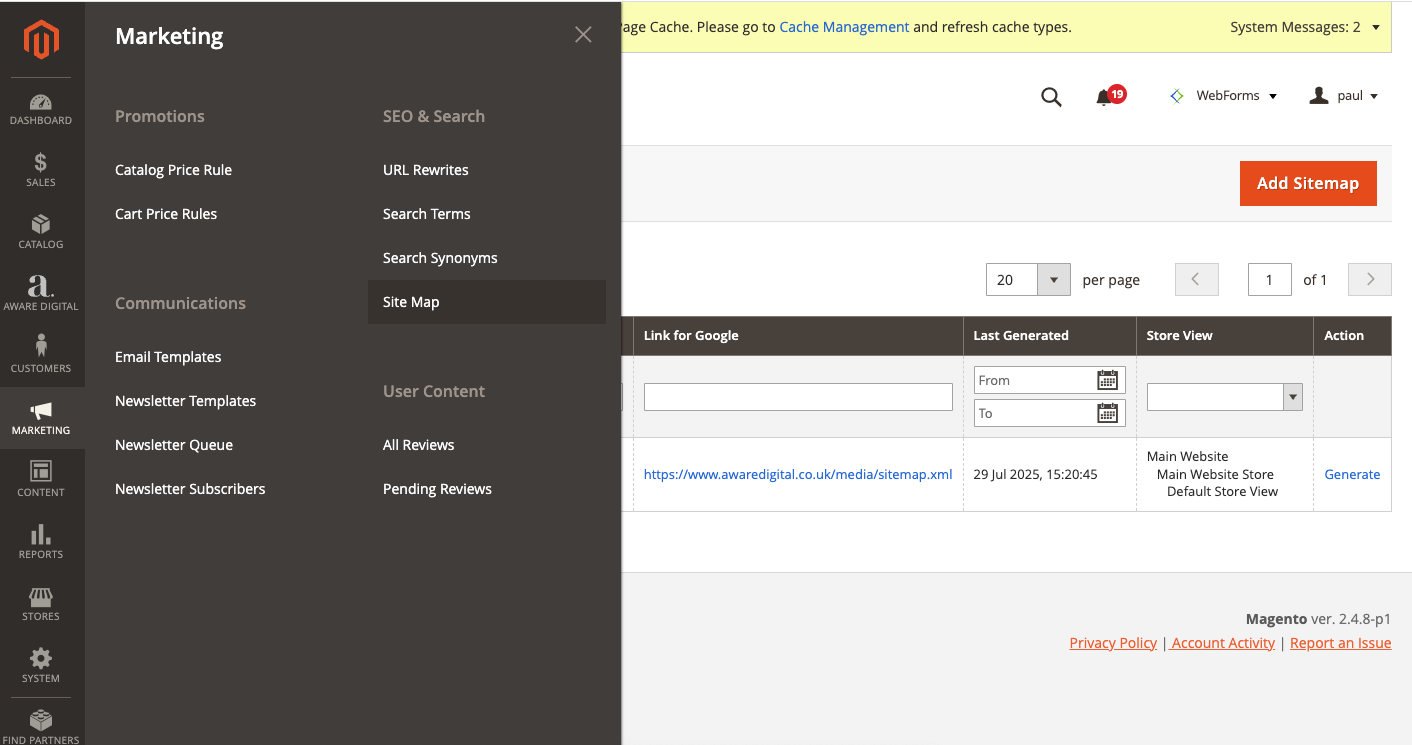
If your store contains thousands of products, categories or CMS pages, it is best to split your sitemaps by content type or category group as this will help keeping your sitemap under 50,000 URLs or the 50mb limit, it will also allow you to isolate crawl issues by sections if required and it will improve monitoring and troubleshooting within Google Search Console.
URL Parameters & Canonical Tags
Identifying Problematic Parameters
As mentioned earlier in the article, Adobe Commerce URLs can include dynamic parameters that create duplicate and unnecessary variations of the same content. These parameters can cause decreased rankings, duplicate content issues, diluted page authority and wasted crawl budget.
To identify problematic URL parameters you can use Google Search Console or tools like Screaming Frog. To avoid these issues occurring on your website you can configure your robots.txt file to block these combinations from being crawled, as shown in the earlier screenshot.
Applying Canonical Tags
Canonical tags help search engines identify the preferred version of a URL when multiple variations exist. Within Adobe Commerce you can set canonical tags in templates which is quicker when working on a site with a large number of categories or products. To do this you need to navigate to stores > configuration > catalog > search engine optimisation as shown in the images below.
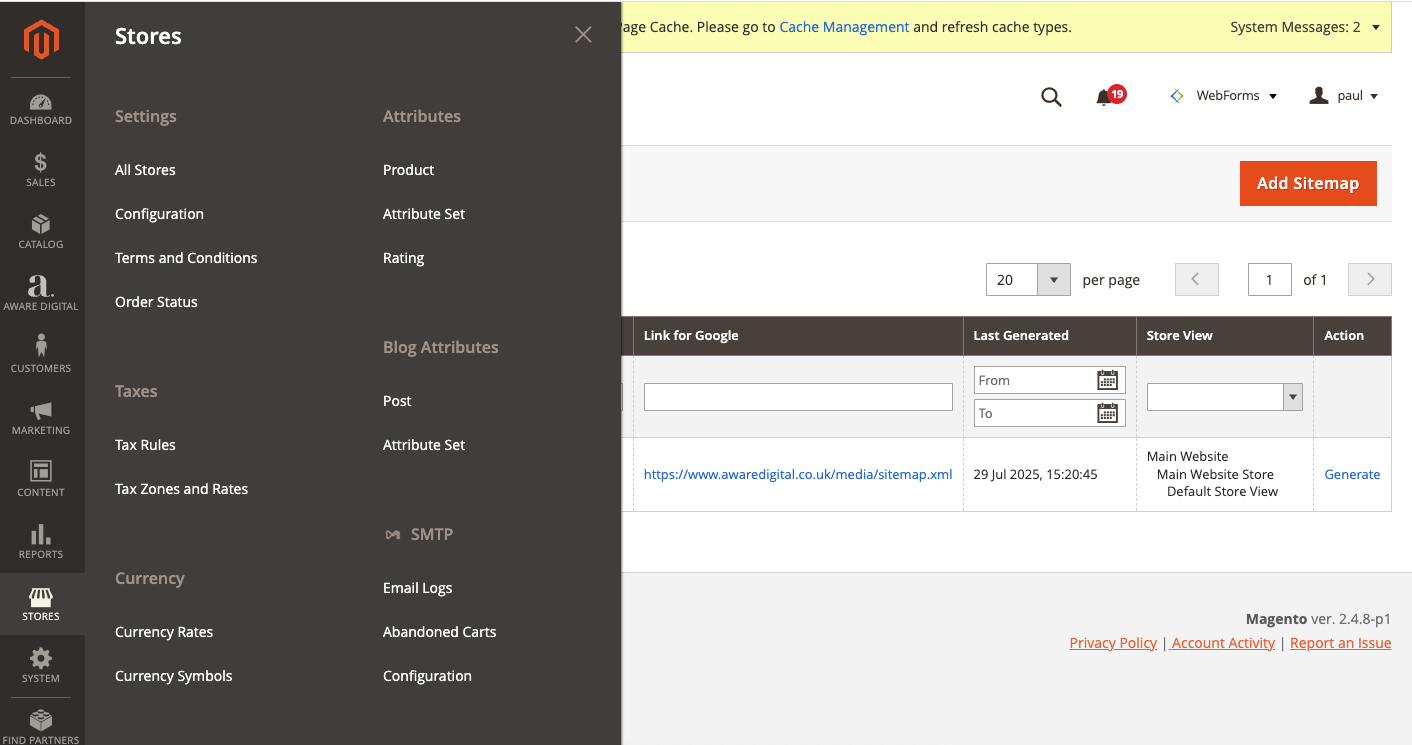
Firstly click on stores on the left hand navigation within your Adobe Commerce dashboard and then select the configuration button.
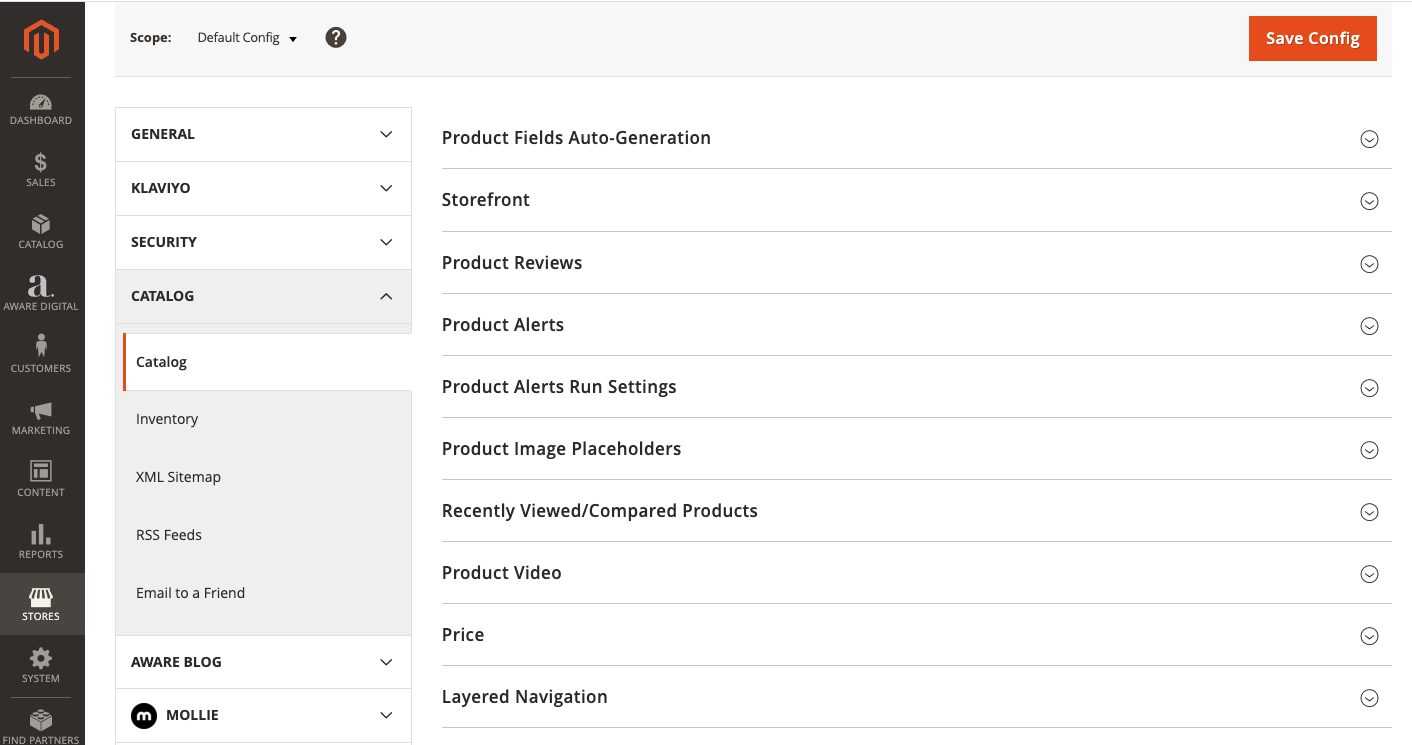
Scroll down and select the catalog button within the menu and navigate to the search engine optimisation section.
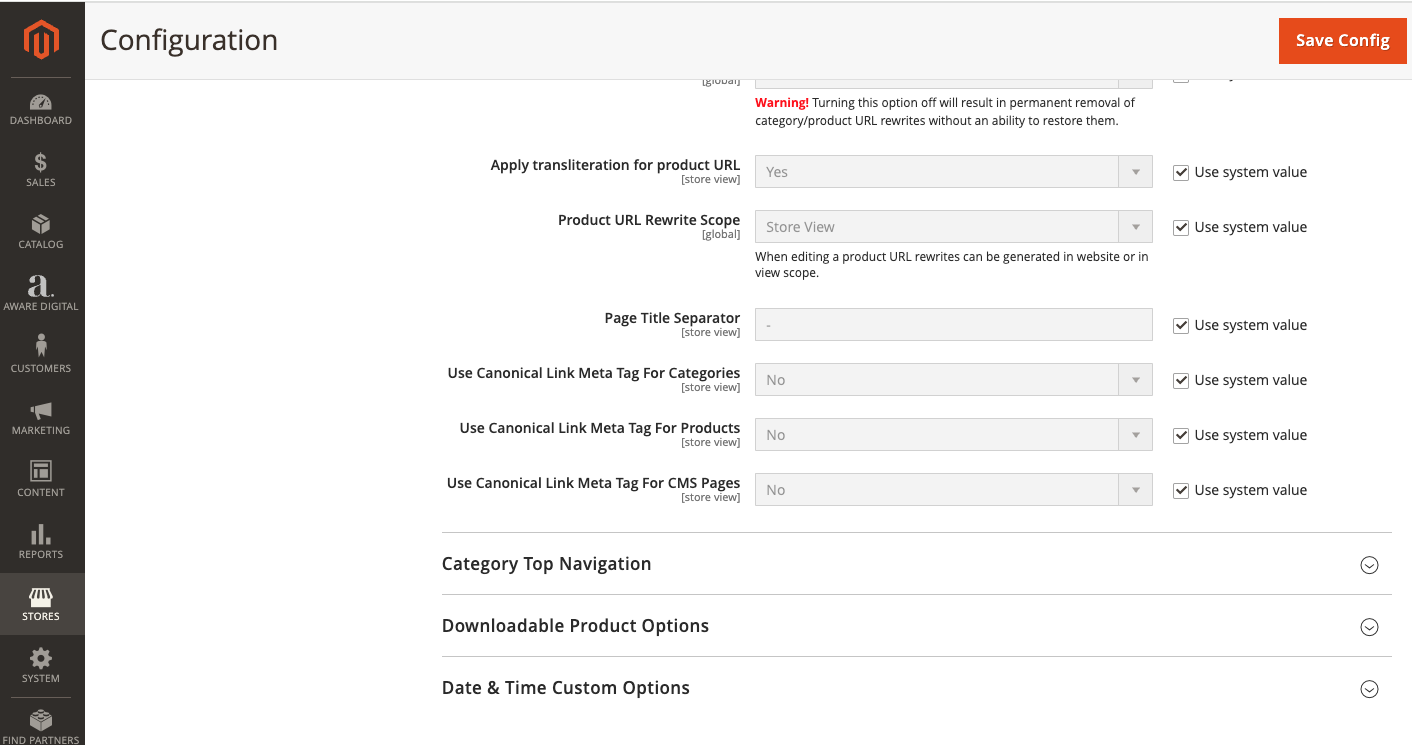
Here you can edit the default settings within the template for canonical tags across the different content types.
You can also insert the canonical tag within the page or product code, use the following tag to do this: <link rel="canonical" href="main_url" />

When doing your canonical tags there are some things you should try to avoid, such as:
-
Not using self-referencing canonical tags on filtered pages, these should always point to the filtered version.
-
Avoid pointing all products to the homepage or category root as this will cause canonical dilution and indexation loss.
-
Always ensure canonical tags are absolute URLs and not relative.
JavaScript Rendering Solutions
How Google Handles JavaScript
Adobe Commerce and similar platforms often rely on JavaScript for dynamic content, filters and user interaction. However this can cause many challenges within SEO. Google uses a two-phase crawl process - firstly it crawls and fetches the HTML, processes and then indexes. JavaScript is then processed later which can delay or miss important content.
If your content is only rendered via JavaScript it may not be crawled or indexed, critical product data such as pricing, availability and reviews could be missed. In short it could impact the discoverability and visibility of your content. To avoid such errors you need to ensure that important SEO content is available within the HTML or rendered in a way that Google can reliably access.
SSR and Pre-rendering
To improve crawlability and indexing of JavaScript-heavy pages, there are some options you can consider. These options are good when key content is hidden behind JavaScript, when Google is struggling to index or rank key pages, when core web vitals are poor and when there is a heavy use of client-side rendering.
The solutions to consider are:
-
Server-side rendering
-
Renders the full HTML of a page on the server before it's sent to the browser.
-
This is ideal for dynamic content that needs to be indexed.
-
It helps improve performance and core web vitals
-
Pre-rendering
-
Generates static HTML versions of JavaScript pages for crawlers.
-
Best suited for websites where SSR is too resource-intensive or complex.
Tools like Prerender.io or Rendertron can be integrated to serve search engines clean HTML while keeping the JS experience for users.
Speed, Performance and CDN
Adobe Commerce Speed Tips
Site speed is a crucial ranking factor and it directly impacts user experience and conversion rates. Adobe Commerce is feature rich so it needs careful optimisation to avoid poor performance. You can test your website speed using tools like Google Page Speed Insights and GT Metrix.
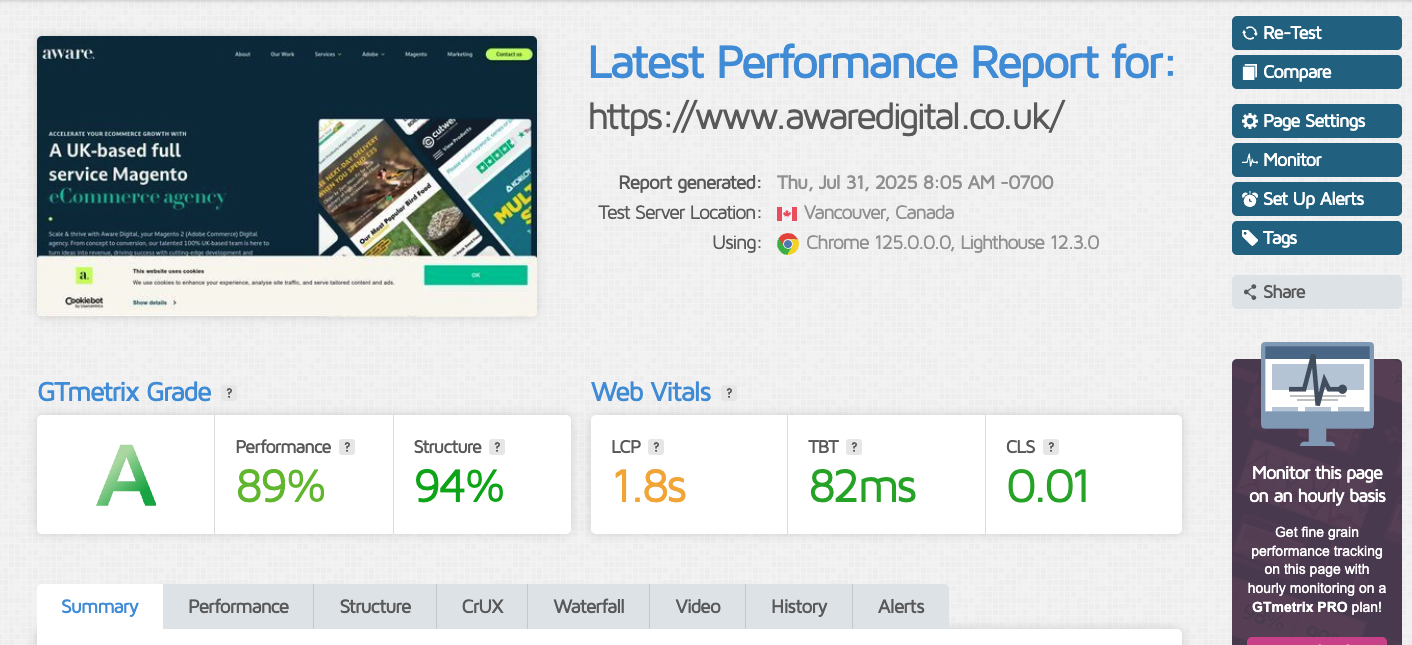
These sites will give you a list of improvements that will speed up your website performance. There are some best practices you can follow when building your website to reduce changes being required further down the line.
-
Always run your live store in production mode to ensure full optimisation and prevent unnecessary overhead from development or default modes
-
Bundle and minify JS/CSS, use built in tools to merge, minify and bundle JavaScript and CSS files.
-
Lazy load images, implement lazy loading for below-the-fold images to improve LCP. This reduces initial page load time and speeds up perceived performance.
-
Optimise image formats, serve images in modern formats like WebP or AVIF for faster loading and compress images for the smallest file size.
Leveraging CDNs
A content delivery network distributes your sites static assets across global edge servers, improving delivery speed and reducing server strain. A CDN will cache assets like images, CSS, JS and fonts closer to the user and will significantly improve website load times.
When setting up a CDN ensure you configure cache control headers and use cache busting for version control on static assets. You can integrate with services like Cloudfare, Fastly or Akamai which are all commonly used with Adobe Commerce.
Summary
Adobe Commerce is a powerful but complex eCommerce platform, and without a well-planned technical SEO setup, it can easily suffer from crawlability issues, duplicate content, and poor performance.
By addressing key technical areas such as clean URL structures, well-configured XML sitemaps, effective use of canonical tags, and proper handling of JavaScript rendering, you can significantly enhance your site's visibility and search engine health.
Optimising for speed and performance through techniques like lazy loading, image format improvements, and CDN integration not only boosts SEO but also enhances user experience and conversion rates.
Whether you're launching a new Adobe Commerce store or auditing an existing one, taking the time to implement these technical SEO best practices will lay the groundwork for scalable, long-term organic growth and a more efficient site overall.
Read our other SEO for Adobe Commerce Articles to further optimise your website.
-
SEO For Adobe Commerce: Beyond The Basics
-
SEO Extensions and Tools for Adobe Commerce
-
International & Multi-Region SEO for Adobe Commerce
-
AI and Intelligent SEO for Adobe Commerce
-
Voice Search and Visual Commerce SEO
-
Site Migration & SEO Risk Management for Adobe Commerce
-
Accessibility & Inclusive SEO for Adobe Commerce
-
Security, Trust & Conversion Signals
-
Ongoing SEO Maintenance & Monitoring for Adobe Commerce
-
Actionable SEO Recommendations For Adobe Commerce Websites